STEP 01
Choose the perspectives
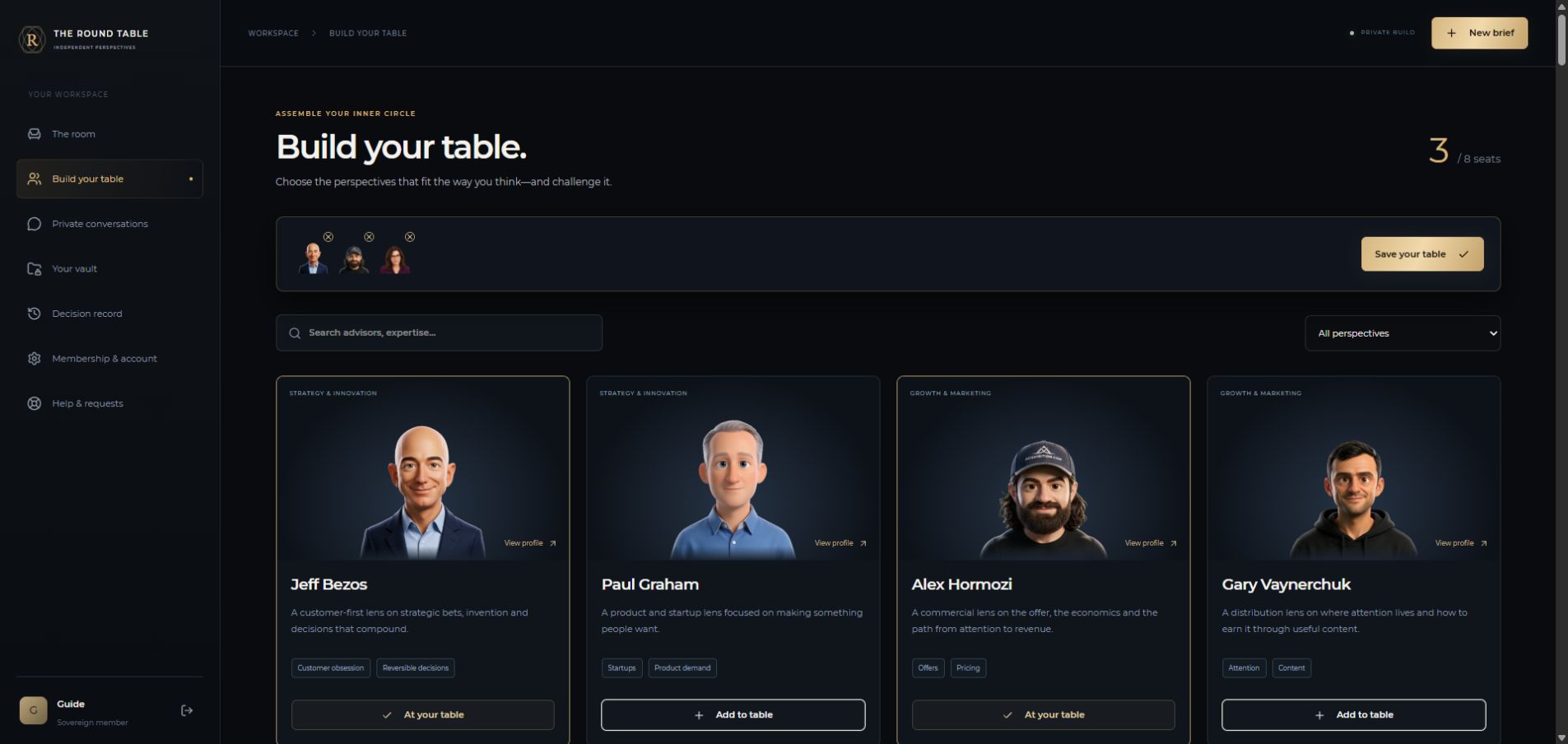
Open Build your table, search by name or expertise and add advisors. Save your table using the selection bar. You can change the advisors for each brief, up to your membership limit and a maximum of eight per debate.
Version 2026-10-19 · Service policies
Start with a decision worth testing. Build your council, give it useful context, then weigh the reasoning and choose your next move.
Tell us what happened and track the response in your private inbox.
02 / A PERSPECTIVE WE ARE MISSING?Suggest a person and useful sources. Requests are reviewed, with no guarantee of inclusion.
03 / GET YOUR BEARINGSA short guide from choosing advisors to printing your decision report.
Guide screenshots use a fictional example. They do not show a member’s private documents, financial details or live debate.
Open Build your table, search by name or expertise and add advisors. Save your table using the selection bar. You can change the advisors for each brief, up to your membership limit and a maximum of eight per debate.
Click New brief. Explain the decision, alternatives, budget, deadline and the outcome you want. Choose advisors and depth. Attach only the relevant files from your vault after checking their readable text. Save brief does not start AI.
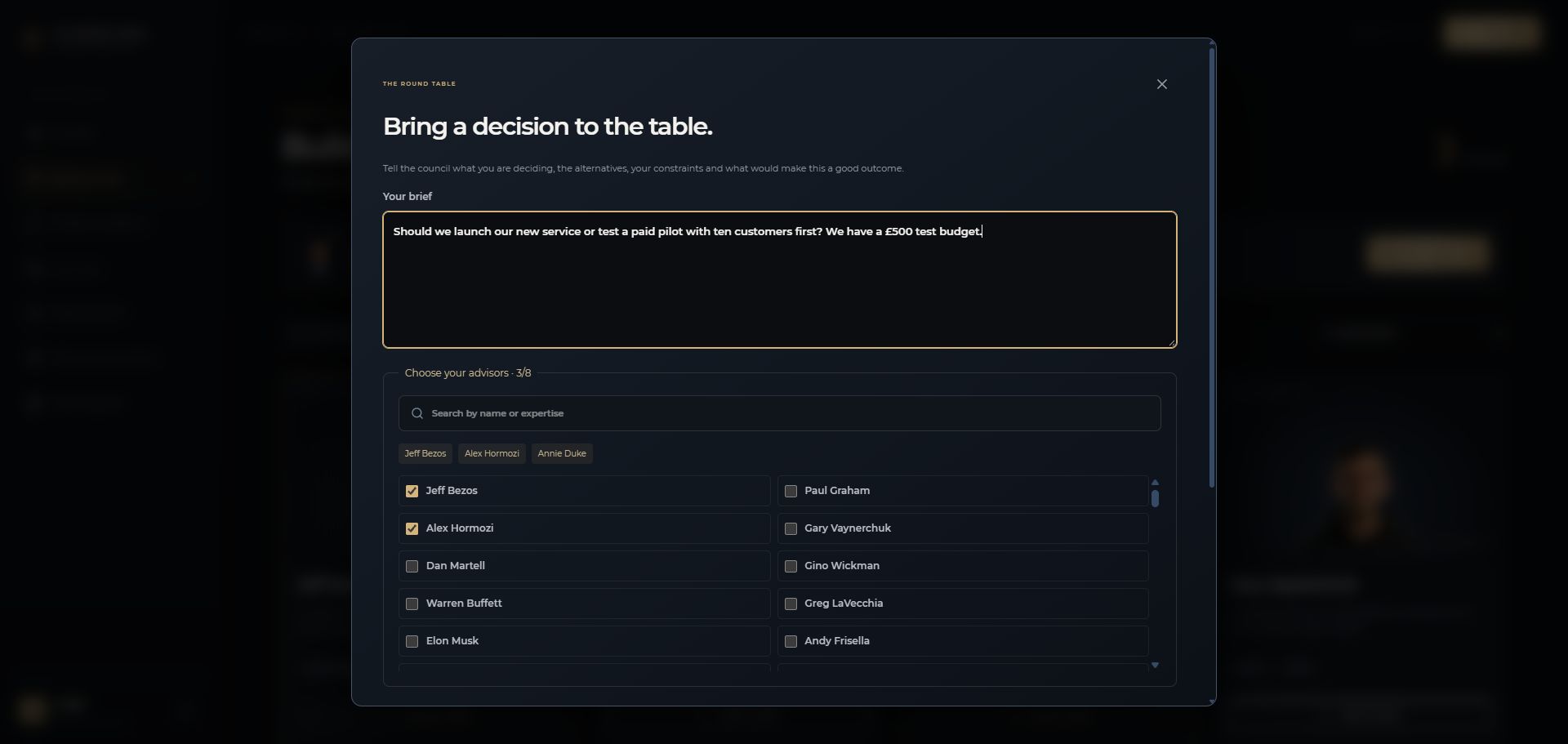
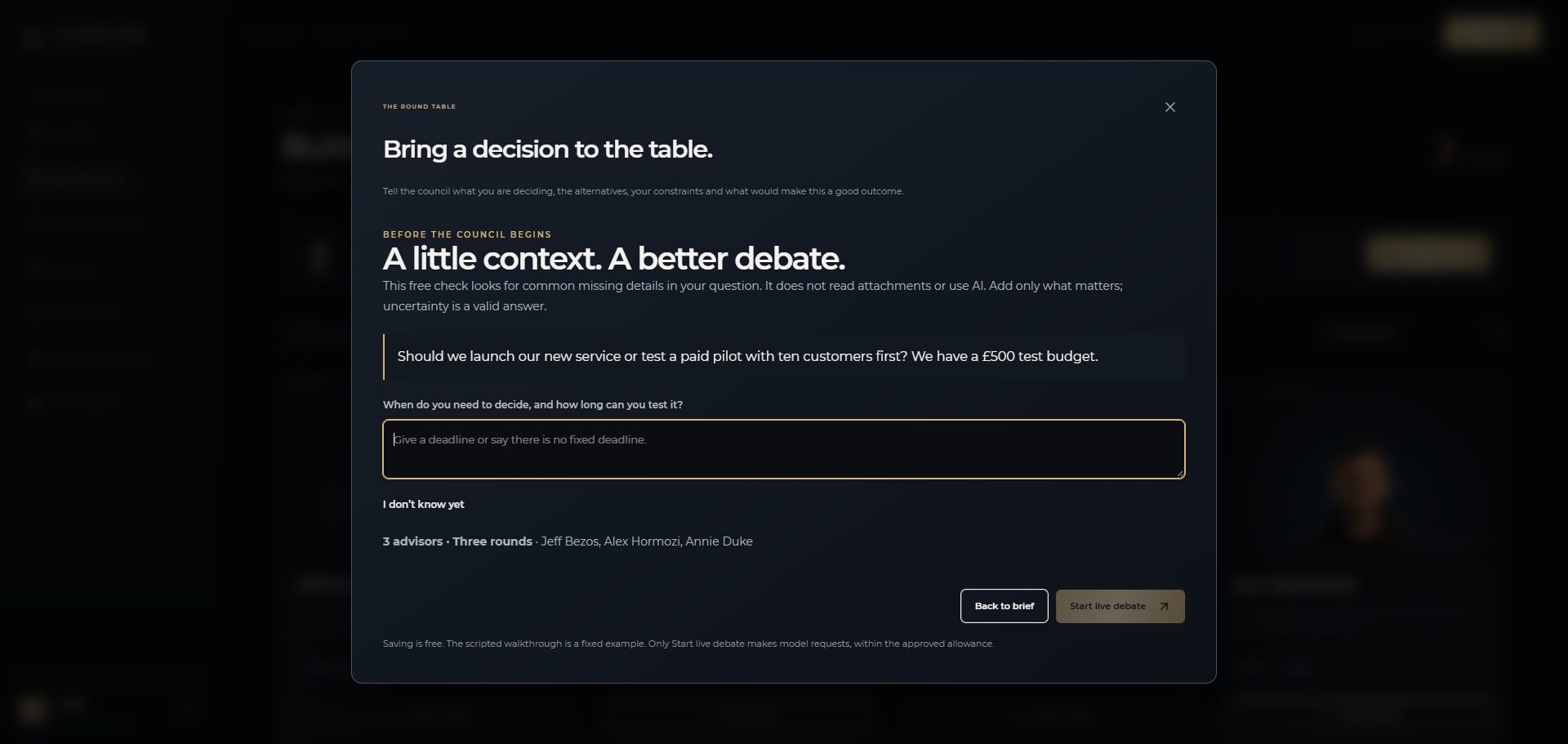
Check brief — free asks about common missing details using rules. It does not use AI or read your attachments. Answer what you can; I don’t know yet explicitly preserves an unknown. Review the selected advisors before starting.
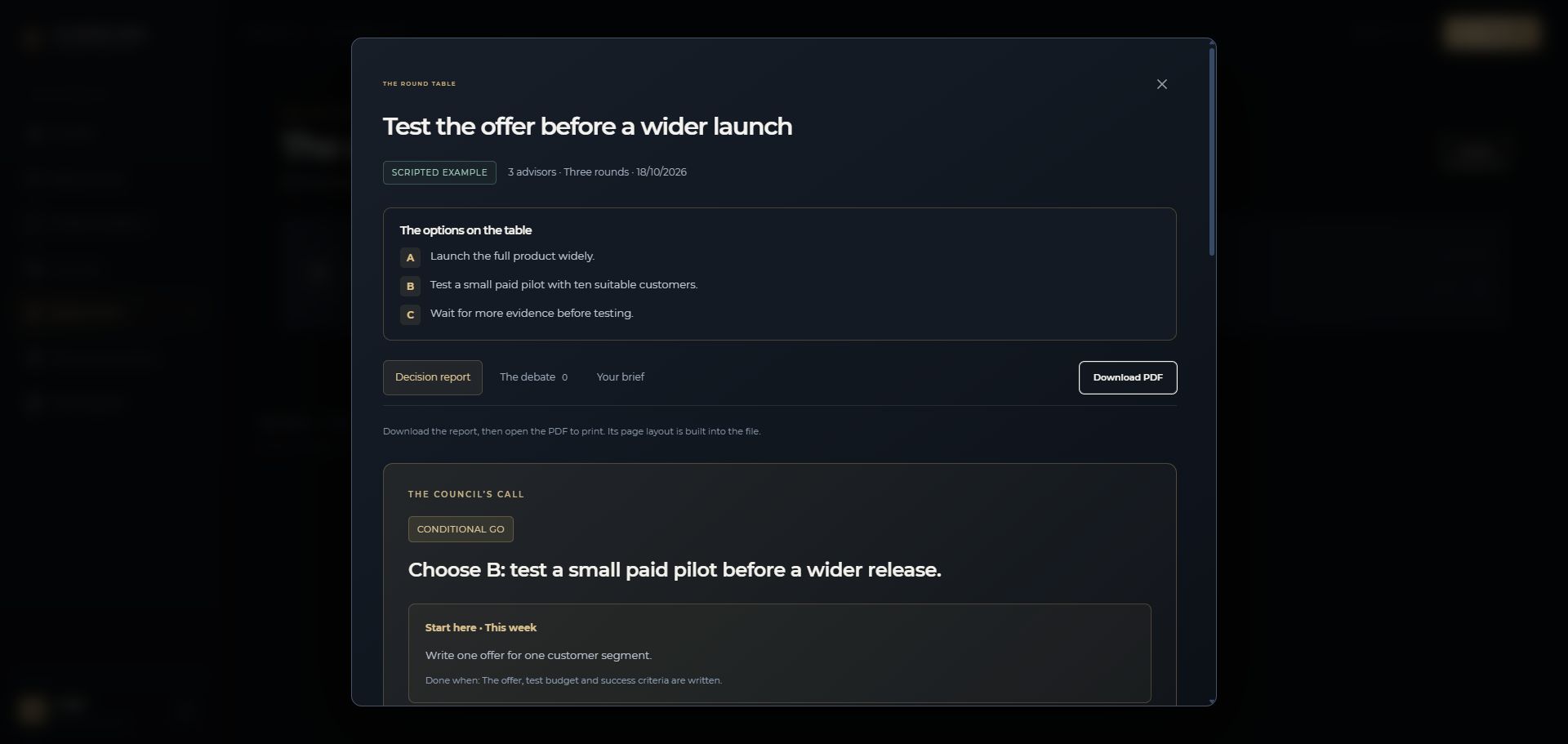
Start live debate is available only when authorised live access and budget are present. Responses save as they finish. In Decision record, read the options, council call, conditions, next moves and dissent. The debate tab shows each round. Download PDF creates the printable decision report without another AI call.
No. They are AI simulations informed by selected notes from public work. The real people do not participate, endorse the service or speak through it.
A live answer receives relevant selected excerpts from that advisor’s active library. It does not receive or read the entire library on every turn. Later rounds also receive the published arguments from the other selected advisors.
A scripted walkthrough is a fixed example. A live debate makes model requests and requires authorised access and an available allowance. The owner controls live AI through a dated spending policy; availability also depends on your membership allowance and remaining site budget. Live subscription billing remains disabled.
Keep its decision record open to progress it. Saved responses remain available if you leave; reopen the record to continue. Do not repeatedly submit the same brief or create a second run as a retry. Report a persistent error through Help & requests.
The spending guard checks the next request’s maximum cost. Insufficient budget, an uncertain provider outcome, expired authorisation or a provider error can stop it. A plan’s debate limit is not a promise that every attempted run will complete.
Upload a supported file, check extracted text and correct missing context in Document preview. Only selected attachments are supplied. Scanned PDFs and images need readable text; the current extraction does not perform AI OCR. Do not upload secrets or sensitive information you are not authorised to share.
Open a completed decision record, choose Download PDF, then open and print the downloaded file. It contains fixed A4 margins and pagination. Exporting does not run the debate again.
Membership & account provides a JSON account export and a confirmed member-account deletion flow. Download original files from Your vault and your photo separately. Owner/staff closure requires operator review. Minimal pseudonymous receipts, provider-held copies and downloaded backups are handled separately. You can also raise a Privacy or data request.
Not necessarily. We consider relevance, usable public research, quality and rights. Sending a request is not an order or a promise of inclusion, timing or notification.
Open Help & requests and select Your requests. Unread team replies are counted beside Help & requests while you use the workspace. Opening a thread acknowledges the replies you saw. Email notifications and an external support mailbox are not configured during this private test.
In Membership & account, choose a PNG, JPEG or WebP photo, adjust the crop and save it. Your photo and preferred name stay private. Saved business context is included in a brief only when you tick its checkbox; old debates keep their original snapshot.
Open a completed report and use What happens next? to record your decision, review date, outcome and feedback. Outstanding review dates appear in The room. No email or background reminder is sent.
For an issue, accessibility barrier, privacy request, copyright claim or security concern, use the private request inbox. Include only the information needed to investigate.
Open Help & requests ↗